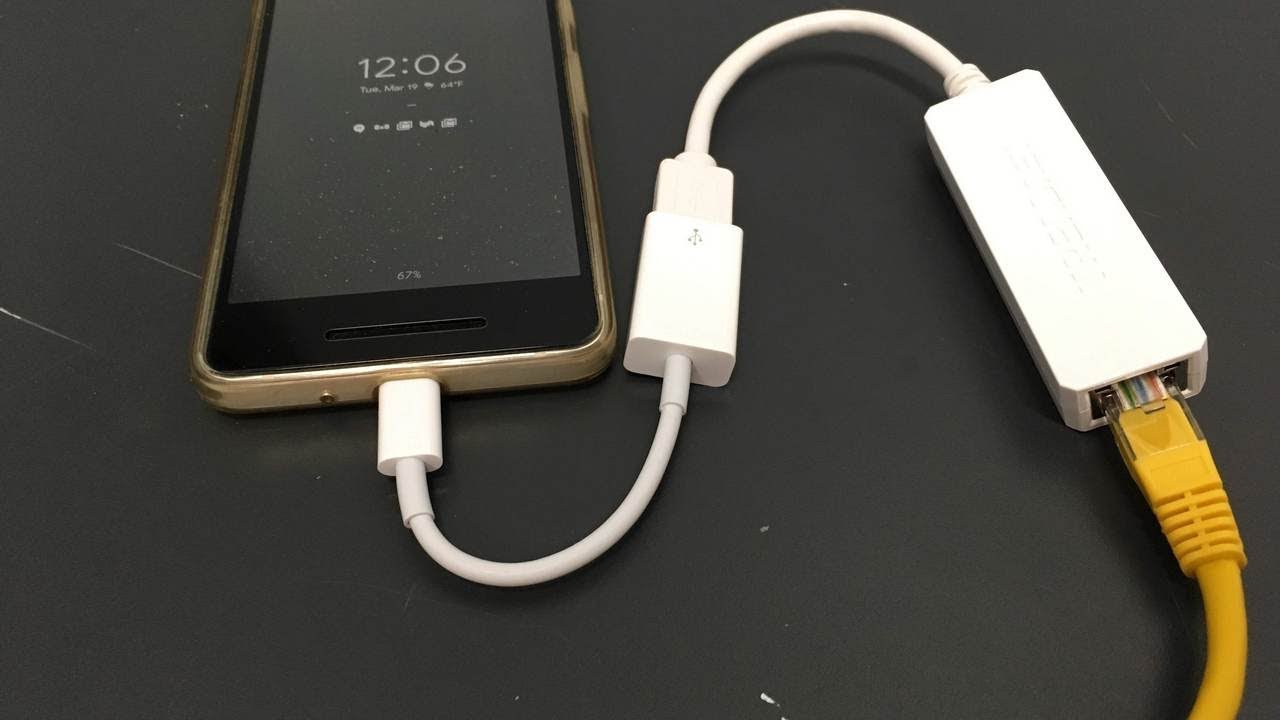
In an increasingly connected world‚ reliable internet access is paramount‚ even on our mobile devices․ While Wi-Fi is ubiquitous and convenient‚ there are specific scenarios where a wired connection offers undeniable advantages‚ providing superior stability and often faster speeds․ Learning how to connect ethernet to mobile can significantly enhance your internet experience‚ especially in areas with poor wireless signals‚ during critical online tasks‚ or when security is a top concern․ This comprehensive guide will walk you through the simple steps and essential equipment required to connect ethernet to mobile devices‚ unlocking a new level of performance and reliability․
Why Consider a Wired Connection for Your Mobile Device?
A direct Ethernet connection offers several benefits over Wi-Fi‚ making it an attractive option for certain users and situations․ It provides a more stable and consistent internet connection‚ free from the interference and signal drops that can plague wireless networks․ This stability is crucial for activities like online gaming‚ video conferencing‚ or streaming high-definition content‚ where interruptions can be frustrating․ Furthermore‚ a wired connection often boasts lower latency and potentially faster data transfer speeds‚ ensuring a smoother and more responsive online experience․
Essential Gear to Connect Ethernet to Mobile Devices
To establish a wired connection between your mobile device and an Ethernet network‚ you’ll need a few key components․ These items are generally affordable and readily available from electronics retailers․
USB-to-Ethernet Adapter
This is the core component that bridges the gap between your mobile device’s USB port and the Ethernet cable․ These adapters come in various forms‚ including USB-A‚ USB-C‚ or Lightning‚ depending on your phone’s port type․ Ensure you get one compatible with your device․
OTG (On-The-Go) Cable
An OTG cable allows your mobile device to act as a host‚ enabling it to connect to USB peripherals like the Ethernet adapter․ If your USB-to-Ethernet adapter has a standard USB-A male connector and your phone has a USB-C or Micro-USB port‚ you’ll need an OTG cable or adapter that converts your phone’s port to a USB-A female port․ Many modern USB-C to Ethernet adapters have integrated OTG functionality․
Standard Ethernet Cable
You’ll need a standard RJ45 Ethernet cable to connect your USB-to-Ethernet adapter to your router or modem․ The length will depend on how far your device will be from the network source․
External Power Source (Optional but Recommended)
Some mobile devices may not provide enough power through their USB port to run the Ethernet adapter efficiently‚ especially if the adapter itself draws significant power․ In such cases‚ a powered USB hub or an adapter with a dedicated power input can prevent battery drain and ensure stable operation․
Here’s a quick list of what you’ll typically need:
- Compatible USB-to-Ethernet Adapter (USB-C‚ Micro-USB‚ or Lightning)
- OTG Adapter/Cable (if not integrated into the Ethernet adapter)
- Standard RJ45 Ethernet Cable
- Router or Modem with an available Ethernet port
- Optional: Powered USB Hub or adapter with power input
Step-by-Step Guide to Connect Ethernet to Mobile
Connecting your mobile device to Ethernet is a straightforward process once you have all the necessary equipment․ Follow these steps carefully:
- Prepare Your Mobile Device: Ensure your mobile device is charged sufficiently‚ as some adapters might draw power․ Turn off Wi-Fi and mobile data to ensure the device prioritizes the wired connection․
- Connect the OTG Cable (if needed): If your USB-to-Ethernet adapter has a standard USB-A connector‚ plug the smaller end of your OTG cable into your mobile device’s charging port (USB-C‚ Micro-USB‚ or Lightning)․ Then‚ plug the USB-A end of the OTG cable into the USB-to-Ethernet adapter․ If you have an integrated USB-C or Lightning Ethernet adapter‚ skip this step and plug it directly into your phone․
- Connect the Ethernet Cable: Plug one end of your RJ45 Ethernet cable into the Ethernet port on your USB-to-Ethernet adapter․
- Connect to Your Network: Plug the other end of the Ethernet cable into an available LAN port on your router or modem․
- Verify Connection: Your mobile device should automatically detect the wired connection․ Look for an Ethernet icon in your notification bar or check your network settings․ Once all components are properly connected‚ your mobile device should recognize the wired connection‚ allowing you to successfully connect ethernet to mobile and enjoy a stable internet experience․
- Test Your Connection: Open a web browser or an app that requires internet access to confirm that the wired connection is working correctly․
Troubleshooting Common Issues
If your connection isn’t working immediately‚ don’t worry․ Here are some common troubleshooting tips:
- Check Compatibility: Ensure your USB-to-Ethernet adapter is compatible with your specific mobile device model and operating system․ Not all phones support Ethernet over USB․
- Power Supply: If your adapter requires external power‚ make sure it’s connected to a power source․ Some phones might not supply enough power to the adapter․
- Restart Devices: Try restarting your mobile device‚ the router‚ and reconnecting all cables․
- Adapter Drivers: Most modern Android and iOS devices don’t require manual driver installation‚ but occasionally‚ an adapter might need specific firmware updates or drivers on a computer first․
- Check Cables: Ensure all cables are securely plugged in and undamaged․
Benefits of a Wired Mobile Connection
The advantages of using a wired connection for your mobile device extend beyond just stability․ You can experience reduced latency‚ which is critical for competitive online gaming where every millisecond counts․ In environments with numerous Wi-Fi networks‚ a wired connection bypasses potential congestion and interference‚ leading to more consistent speeds․ Furthermore‚ a direct Ethernet link can be considered more secure than public Wi-Fi networks‚ as it minimizes exposure to potential eavesdropping over the airwaves․
Frequently Asked Questions (FAQ) about Mobile Ethernet Connections
Can all mobile phones connect to Ethernet?
No‚ not all mobile phones support Ethernet connections‚ especially older models․ Most modern Android phones with USB-C ports and iPhones (with a Lightning to USB 3 Camera Adapter and a USB-to-Ethernet adapter) generally support it․ Check your device’s specifications or online forums for compatibility․
Does connecting Ethernet drain my phone’s battery faster?
Yes‚ the USB-to-Ethernet adapter draws power from your phone’s battery․ The extent of the drain depends on the adapter’s power consumption and your phone’s battery capacity․ Using a powered USB hub or an adapter with a pass-through charging port can mitigate this issue․
Is an Ethernet connection faster than Wi-Fi on mobile?
Often‚ yes․ While high-end Wi-Fi standards (like Wi-Fi 6/6E) can offer impressive speeds‚ an Ethernet connection typically provides more consistent speeds‚ lower latency‚ and is less susceptible to interference‚ often resulting in a perceivably faster and more reliable experience in practical use․
Do I need special software or drivers?
For most modern Android and iOS devices‚ no special software or drivers are required․ The operating system usually has built-in support for common USB-to-Ethernet chipsets․ Simply plug and play․
Successfully learning to connect ethernet to mobile opens up a realm of possibilities for enhanced performance and reliability‚ transforming your portable device into a powerhouse for demanding online tasks․ Whether you’re a gamer seeking minimal lag‚ a professional needing rock-solid video calls‚ or simply someone frustrated by unreliable Wi-Fi‚ a wired connection provides a robust and dependable solution․ With the right accessories and a few simple steps‚ you can easily unlock the full potential of your mobile internet connection․